
In the world of digital design and content creation, efficiency is the name of the game. But have you ever hit a creative wall because of a simple copy and paste?
We’ve all been there. You’re working in Adobe Illustrator, InDesign, Acrobat Pro or Reader, or Photoshop, you copy a bit of text, and you head over to Microsoft Word or an AI App to paste it.
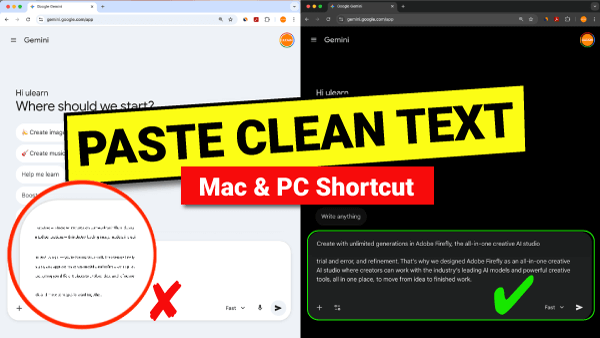
Instead of clean text, you get:
A giant, blurry image that you can’t edit.
A “hot mess” of weird fonts and broken layouts.
Hidden code that confuses your AI prompts.
If you’re tired of re-typing your text and work, there is a simple keyboard shortcut you can start using today to get perfect results every time.
Why Does it Paste as an Image?
When you copy from a professional suite like Adobe, your clipboard is “heavy.” It carries metadata, vector paths, and formatting rules that Microsoft Word or a web browser simply doesn’t understand. Because the receiving app gets overwhelmed, it defaults to the easiest thing: An Image.
Strip the Formatting Instantly
You don’t need to paste into Notepad first to clean your text, and you definitely don’t need to keep copying and pasting into a web browser just to “reset” it. You just need to add a key or two to your usual paste command. This forces the application to ignore the “junk” and only grab the actual characters.
For PC Users (Windows)
The standard paste is Control V. To strip formatting, use:
Control Shift V
For Mac Users
The standard paste is Command V. To “Match Style” and strip formatting, use:
Command Option Shift V
Why Does This Matter for Your Workflow?
When you use this “Clean Paste” method, you aren’t just saving a few seconds—you’re removing the constant frustration of apps not working with each other. Imagine how much easier your day becomes:
Adobe to Microsoft: Move text from your Illustrator/InDesign layouts or Photoshop mockups into Word documents without the “Image Mess.” No more resizing giant, blurry screenshots that used to be editable text!
Web to AI: Copy research from a website and paste it into an AI tool like ChatGPT or Gemini without bringing over hidden web code or messy formatting.
PDF to Document: Grab a paragraph from a complex, multi-column PDF and paste it cleanly into your report without those annoying weird line breaks.
Instant Consistency: The text automatically matches the font, color, and size of the document you are currently working in. No more endless clicking to “Clear All Formatting.”
It’s clean, editable text, every single time.
Did this tip save you some time? Make sure to check out our blog or YouTube channel for more visual quickstarts tips and tricks!